There are many checks to validate PWA features in the audit. In the Lighthouse PWA Audit for Chrome 78, the baseline checks are as follows:
- Fast and reliable
- Page load is fast enough on mobile networks
- Current page responds with a 200 when offline
- start_url responds with a 200 when offline
- Installable
- Uses HTTPS
- Registers a service worker that controls page and start_url
- Web app manifest meets the installability requirements
- PWA Optimized
- Redirects HTTP traffic to HTTPS
- Configured for a custom splash screen
- Sets an address-bar theme color
- Content is sized correctly for the viewport
- Has a <meta name=”viewport”> tag with width or initial-scale
- Contains some content when JavaScript is not available
- Provides a valid apple-touch-icon
- Additional items to manually check
- Site works cross-browser
- Page transitions don’t feel like they block on the network
- Each page has a URL
Develop a PWA Using Code
Having seen the requirements to qualify as a Progressive Web App, let’s see what’s needed to actually build one. This section contains some partial code snippets to give developers an idea of what is required to code a PWA.
Step 1: Enable HTTPS
The first thing to keep in mind is that, for security reasons, PWAs require HTTPS. Without a secure HTTPS connection, PWA features will not work.
The only exception is when testing on localhost for local development. Otherwise, you will need to install commercial SSL certificates in your web server, or obtain free SSL certs from providers such as Let’s Encrypt.
Step 2: Create a Web App Manifest
The first key component in a PWA is the web app manifest. The web app manifest is a simple JSON file placed in the root of the web app that provides information regarding the web app. The manifest would include information about the app name, icons, splash screen, start URL and more.
An example web app manifest:
{
“short_name”: “MyApp”,
“name”: “My App”,
“icons”: [
{
“src”: “/images/icons-192.png”,
“type”: “image/png”,
“sizes”: “192×192”
},
{
“src”: “/images/icons-512.png”,
“type”: “image/png”,
“sizes”: “512×512”
}
],
“start_url”: “/myapp/”,
“background_color”: “#338888”,
“display”: “standalone”,
“scope”: “/myapp/”,
“theme_color”: “#338888”
}
Step 3: Develop a Service Worker
The next key PWA component, arguably the most important one, are service workers. Service workers are JavaScript code in the web app root that runs in the background. They intercept network requests and act like sort of a client-side proxy.
The first step is to register the service worker e.g.
if (‘serviceWorker’ in navigator) {
window.addEventListener(‘load’, () => {
navigator.serviceWorker.register(‘/service-worker.js’)
.then((reg) => {
console.log(‘Service worker registered.’, reg);
});
});
}
Service workers are event-driven and responds to 3 primary events: Install, Activate and Fetch.
The Install event occurs when the app is installed. This is typically used to cache pages, using the Cache API, e.g.
self.addEventListener(‘install’, event => {
// cache core files
event.waitUntil(
caches.open(CACHE_NAME).then((cache) => {
console.log(‘Service worker pre-caching offline pages’);
return cache.addAll(FILES_TO_CACHE);
})
);
});
The Activate event occurs when the service worker is activated, either immediately after installation or on return. You can use this event to clean up unused data, e.g.
self.addEventListener(‘activate’, event => {
// delete old caches
evt.waitUntil(
caches.keys().then((keyList) => {
return Promise.all(keyList.map((key) => {
if (key !== CACHE_NAME) {
console.log(‘Service worker removing old cache’, key);
return caches.delete(key);
}
}));
})
);
});
The Fetch event occurs whenever a network request is made. There are several offline strategies that could be used to serve content, for example you could use a network, falling back to cache strategy. In this case the service worker will first try to fetch the resource from the network and if that fails, it will return the offline page from the cache e.g.
self.addEventListener(‘fetch’, event => {
event.respondWith(
fetch(event.request).catch(function() {
return caches.match(event.request);
})
);
}
Step 4: Add Push Functionality
Push Notifications are performed using two APIs: the
Notifications API and the
Push API. The former lets the app display system notifications to the user, while the latter allows a service worker to receive messages from a server, even in the background.
To actually send push messages and display the notification, the following general steps are required:
On the client app:
- Subscribe to the push service
- Send the subscription object to the server
On the server:
- Generate the message data
- Encrypt the data with the user public key
- Send the encrypted data.
There’s too much to cover to explain in detail here, but an example can be found at Adding Push Notifications to a Web App.
Step 5: Add Offline Functionality
Service workers can make use of 2 types of offline storage.
Firstly, the Cache API can be used to cache pages to save and serve network resources (HTML, CSS, JavaScript, images). For typical requests, using the Cache API is sufficient to provide offline read-only access. Example code using the Cache API was given earlier under the service worker fetch event.
However, the Cache API does not support POST requests, so form data submission will not work. In this case, the IndexedDB API provides client-side storage for structured data. IndexedDB is like a SQL relational database (RDBMS) that is built into the browser. The service worker can be coded to intercept the form data to be stored into the IndexedDB. The data can then be synchronized using the Background Sync API back to the server once a network connection is reestablished.
An example of implementing this can be found in the article Background Sync with Service Workers.
Develop a PWA Using a No-Code/Low-Code Platform
The previous section shows that although simpler than developing native apps, building a PWA from the ground up is not as simple as it could be. A simpler way of developing Progressive Web Apps is to use a no-code/low-code platform that provides automatic PWA support, such as
Joget DX.
In Joget DX, apps that you design are automatically PWA compliant (as long as you host using HTTPS). For example, when you visually design a form and userview (end-user UI), PWA support is enabled by default. Offline functionality (both read-only and form submission with background sync) can be enabled via configuration, basically by ticking some checkboxes. Some sample screenshots below demonstrates the PWA support in Joget DX:
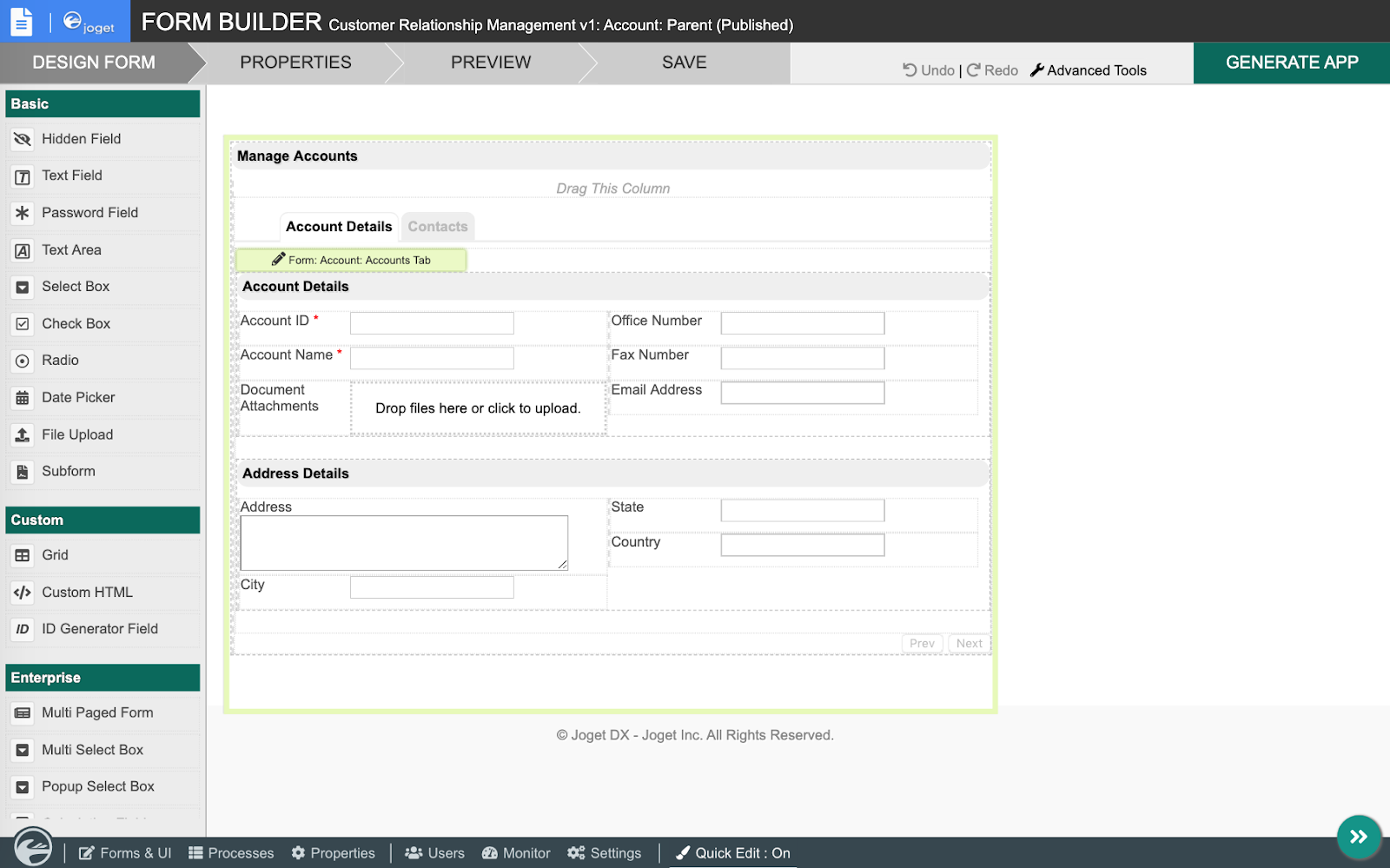 |
| Visually design a form in Joget DX |
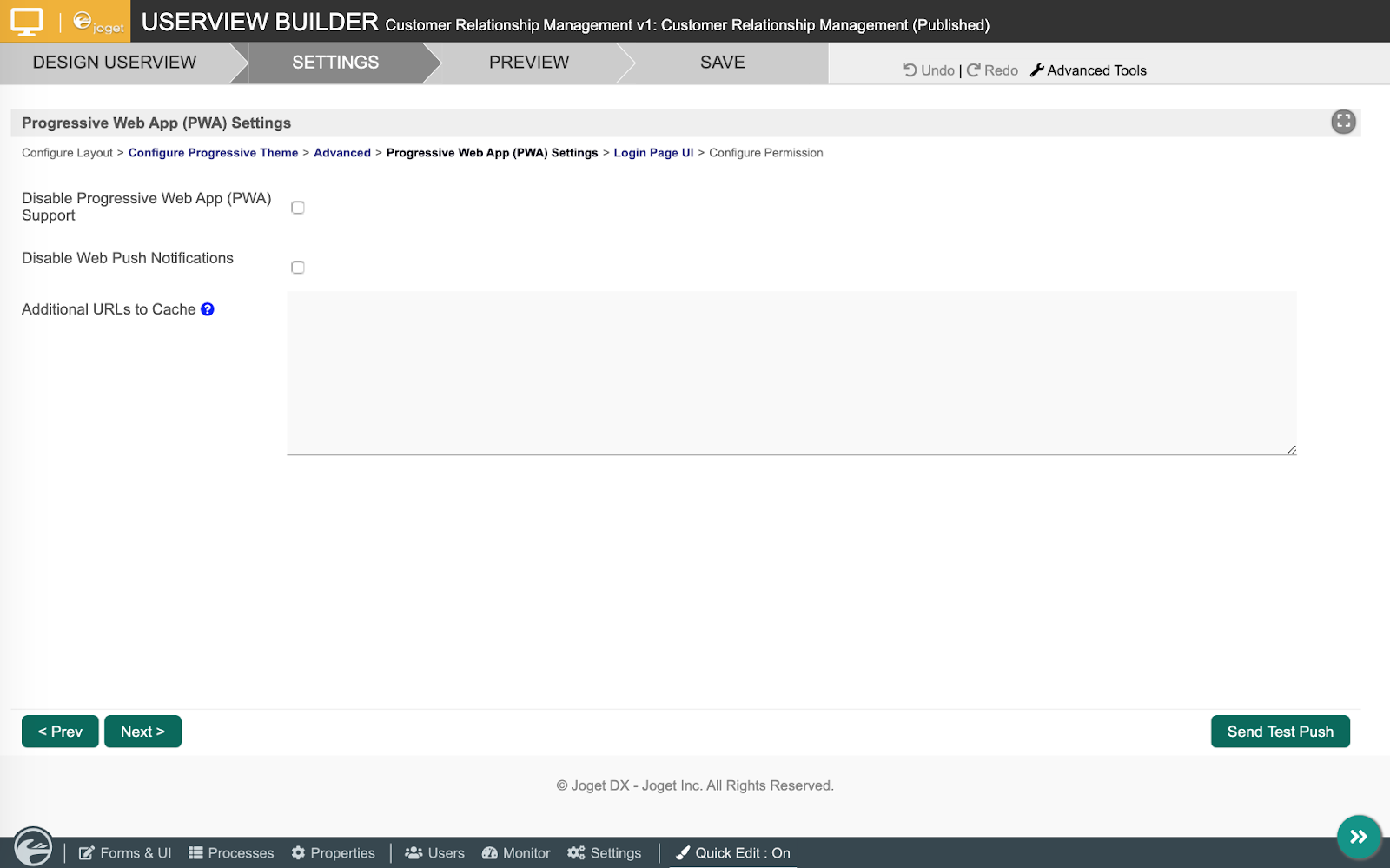 |
| Progressive Web App support and push notifications enabled by default |
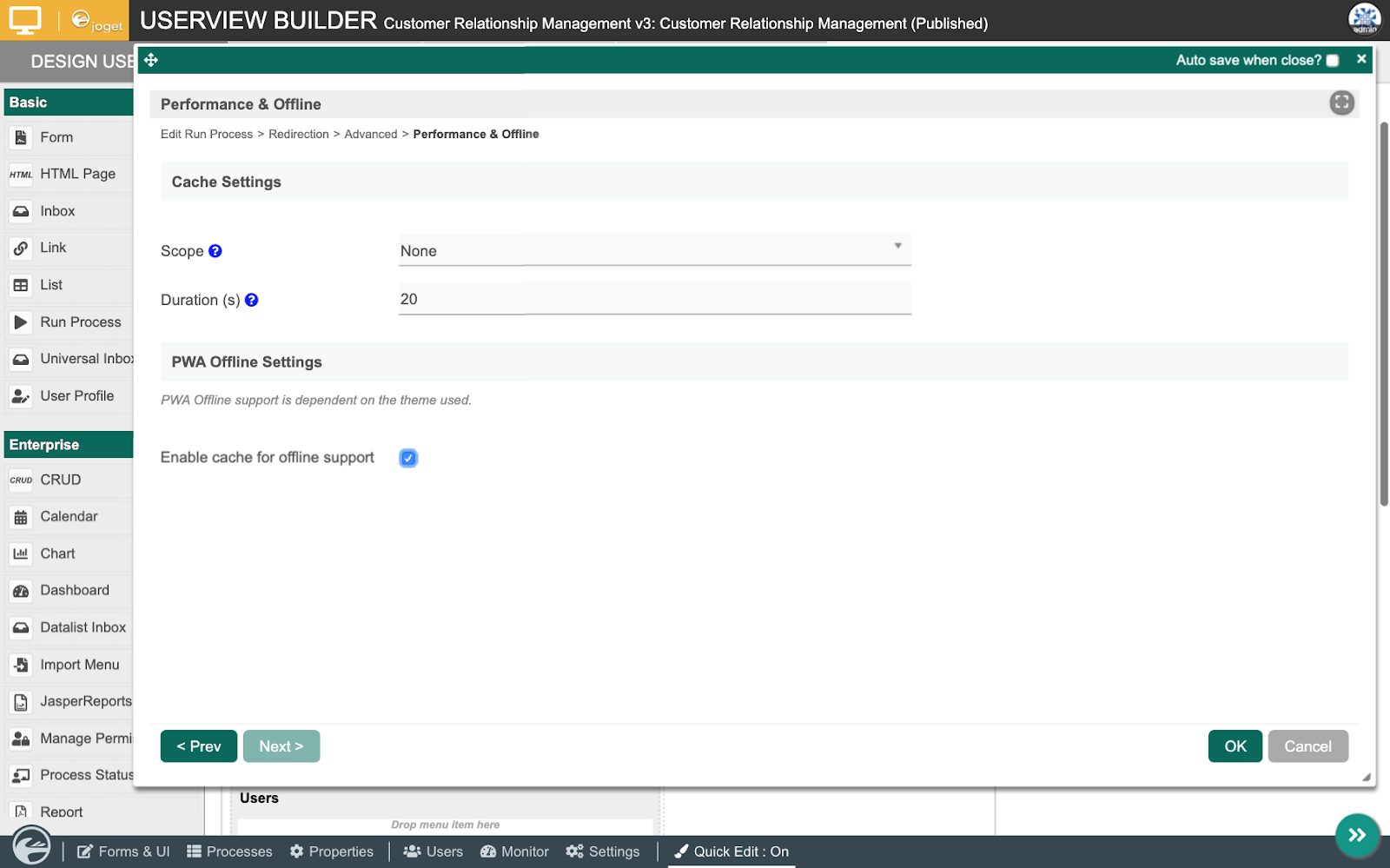 |
| Offline functionality enabled via checkbox |
 |
| Lighthouse PWA audit for a Joget DX app on mobile |
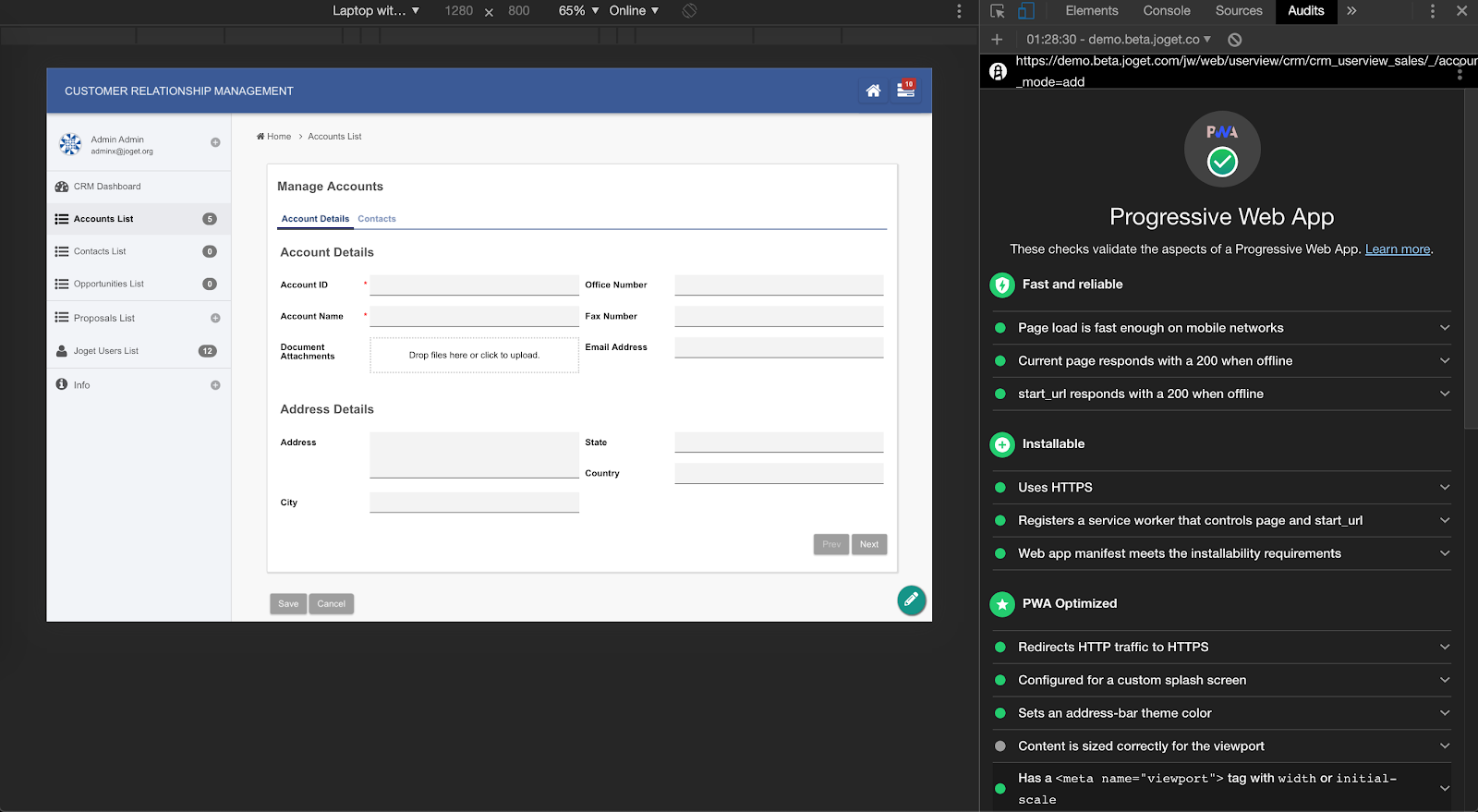 |
Lighthouse PWA audit for a Joget DX app on desktop
|
Should You Adopt PWAs Today?
So, having learned about the promise of Progressive Web Apps, should enterprises and developers adopt PWAs today? The answer should be a resounding yes. PWAs are not perfect yet, especially in terms of cross-platform compatibility, but it is definitely time to start embracing the future if you have not already started on the journey.
To get started with Progressive Web Apps using a visual no-code/low-code platform, try Joget DX.